Bitfreighter
What it does
Bitfreighter is an EDI (Electronic Data Interchange) provider. It lets your customers send load tenders straight into the TMS electronically, so you don't have to enter them by hand. The TMS also sends updates back to the customer automatically.
Setup
Step 1: Create a Bitfreighter account
Contact Bitfreighter and set up an account. They'll give you a Broker ID and an API Token.
Step 2: Connect Bitfreighter to the TMS
Send your Broker ID and API Token to @Support. We'll connect your account for you.
Step 3: Add your customers
For each customer who will send you EDI:
- In Bitfreighter, add the customer and copy their
Customer ID. - In the TMS, open that customer's profile.
- Add the Customer ID as an External Reference.
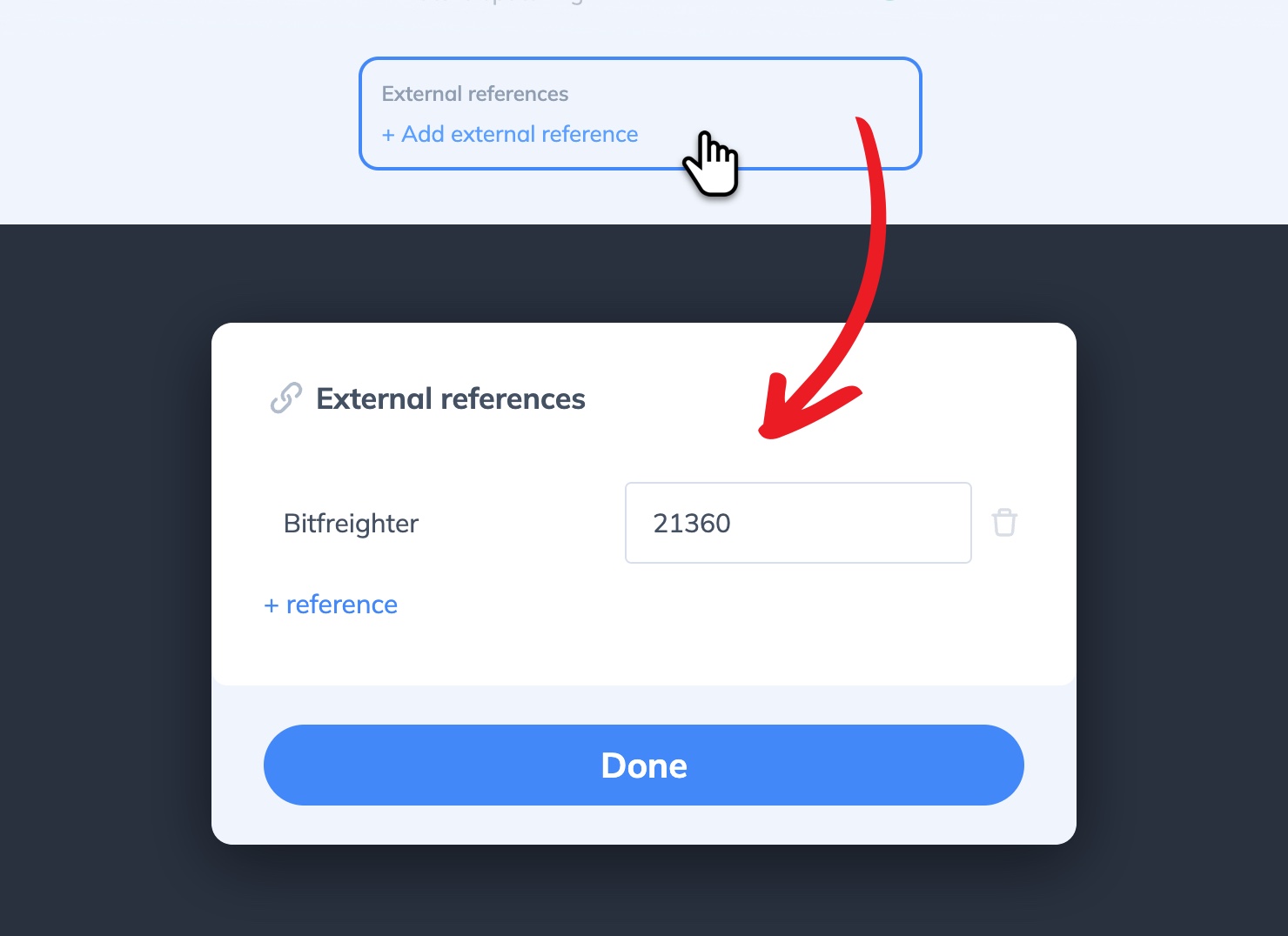
That's it. The TMS can now receive EDI from that customer.
How it works
Receiving load tenders and updates (EDI 204)
Customers can send you new shipments, or updates to shipments that were created through EDI.
New shipments are created in the TMS automatically.
Updates are handled based on the shipment's status:
- Not booked yet: We apply the changes for you automatically.
- Already booked: You'll be asked to review the changes first. Choose Accept to apply them or Decline to keep the shipment as is.
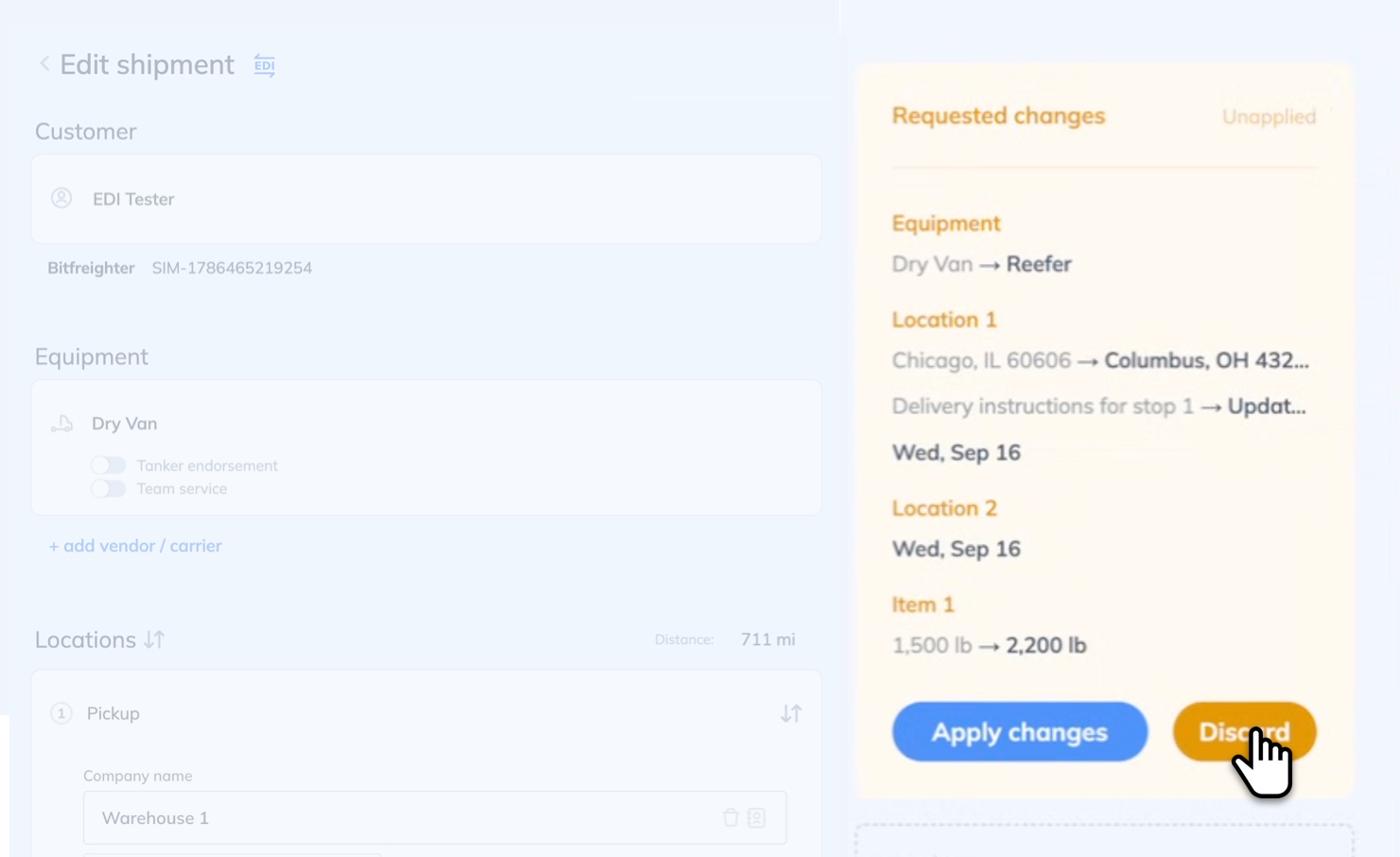
After you accept or decline, we automatically send an EDI 990 response back to the customer.
When you decline an update, the shipment stays exactly as it was before the update came in. None of the changes are applied. If the customer still need the changes, they can send a new update, or you can reach out to them directly to sort out the details.
Sending status and appointment updates (EDI 214)
As the shipment moves, the TMS sends status updates back to the customer, including arrival and departure times and appointment changes.
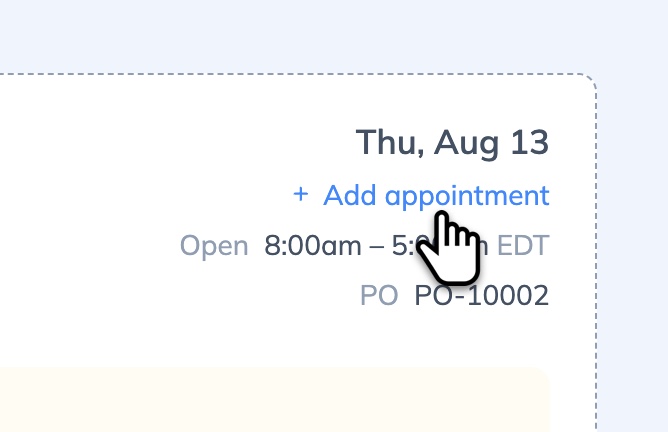
To add or change an appointment, use the location cards on the shipment. Any change is sent to the customer automatically.
Cancellations
Customers can cancel a load tender through EDI. If the shipment isn't booked yet, we'll cancel it for you automatically. If it's already booked, you'll be asked to review the cancellation first so you can take care of the carrier before anything changes. Once you accept or decline, we'll send an EDI 990 back to the customer.
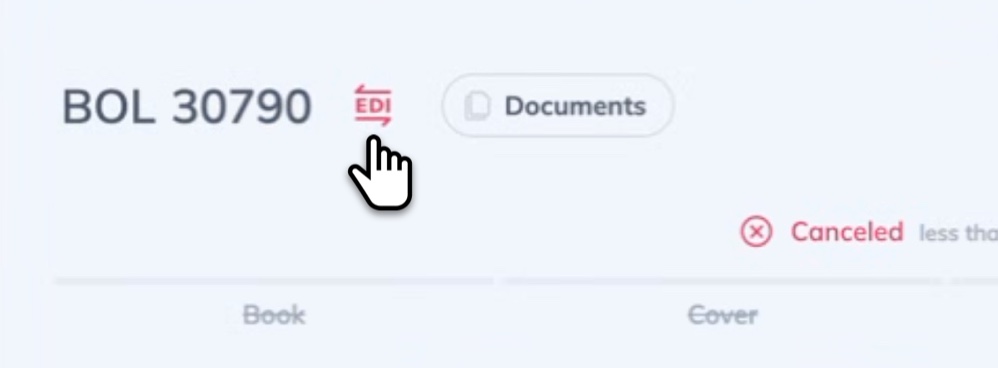
Spotting an EDI shipment
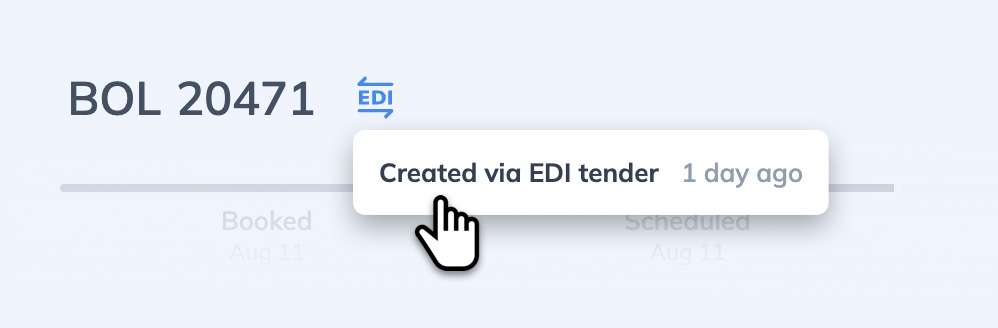
If there's a badge, tag, or source field on EDI-created shipments, mention it with a screenshot. People will want to know which shipments are "live" with a customer's system.